A slow-burn game of hidden roles, played between meetings.
Watercooler Werewolf runs the classic party game over days or weeks. Everyone gets a secret role on their own device, votes on their own time, and a moderator publishes each result.
Walkthrough video
A three-minute tour with fictional players: a moderator importing a list and opening sign-ups, a visitor signing up from the public link, claiming a seat, receiving a role, voting, and the moderator publishing a result, then opening a Night, checking special powers in Player choices, a helper applying to co-moderate, and finding the console’s other tabs.
What it is
Werewolf (also called Mafia) is a social deduction game. Most players are Villagers; a few are secretly Werewolves. The Village tries to find and vote out the Werewolves. The Werewolves pretend to be Villagers and pick off the Village at night.
This app makes the game work for a busy group spread across a workday:
Private roles. Each player sees only their own role and anything their role is allowed to know.
Official ballots. Votes and night actions are saved in the app, so nobody has to track them by hand.
Reviewed results. A moderator checks each calculated result and publishes it. A moderator can instead switch a game to automatic results: at each deadline the app locks and calculates, then publishes after a review window (60 minutes by default) unless the moderator publishes, corrects, or pauses it first. The moderator can also let the app open the next Day or Night as soon as a result publishes, so nobody has to be at a screen to start it.
Your own pace. Each phase stays open for hours, so people play between meetings instead of all at once.
Talk happens in the app’s Town Hall or wherever your group already chats: in person, Slack, Teams, or email. Only what you save in the app counts.
The rules
Day
Every living player votes to eliminate someone. Werewolves vote too, to blend in.
Night
Werewolves choose whom to attack. The Seer investigates, the Bodyguard protects, and Cupid may link two lovers. Everyone else waits.
Results
The moderator publishes each result. In a game with automatic results, it publishes after the moderator’s review window, or sooner if the moderator publishes it, and your deadline card says when. Eliminated players’ roles are revealed and they become spectators.
The game starts with a Day, then alternates Night and Day.
The Village wins when no Werewolves are left alive.
The Werewolves win when living Werewolves equal or outnumber everyone else still alive.
How many players are eliminated
Each Day, Night attack, and Final ballot has a number of slots: the most players it can eliminate. Each voter may pick up to that many targets. Slots depend on how many players are alive when the phase opens. With the default setting:
Living players
Slots
1–30
1
31–60
2
61–80
3
Your moderator may set a fixed schedule instead, for example 2 Day eliminations and 2 Night attacks a day for the first week. Either way, each phase shows its slots when it opens, and a phase never eliminates every player left.
The players with the most votes fill the slots. No votes means no elimination, and a Bodyguard’s protection can leave a slot empty.
Ties and the Afterlife
During each Day and Final ballot, eliminated players may cast an optional Afterlife tiebreak vote. It only matters if the living vote ties for the last slot: then the tied player with the most Afterlife votes goes. If the Afterlife ties too, or didn’t vote for any of the tied players, a recorded random draw decides. The timeline notes when the Afterlife settled a tie on its own, but its votes aren’t published. Night ties among the pack are always settled by a random draw.
Final showdown
If no team has won by the organizer’s final cutoff, the moderator can start a Final showdown: repeated Final ballots, with no more Nights, until one team wins.
Roles
Every living player votes during the Day, whatever their role. The moderator chooses which roles are in each game.
Villager
Village
No special power. Discuss, read the timeline, and vote wisely.
Werewolf
Werewolves
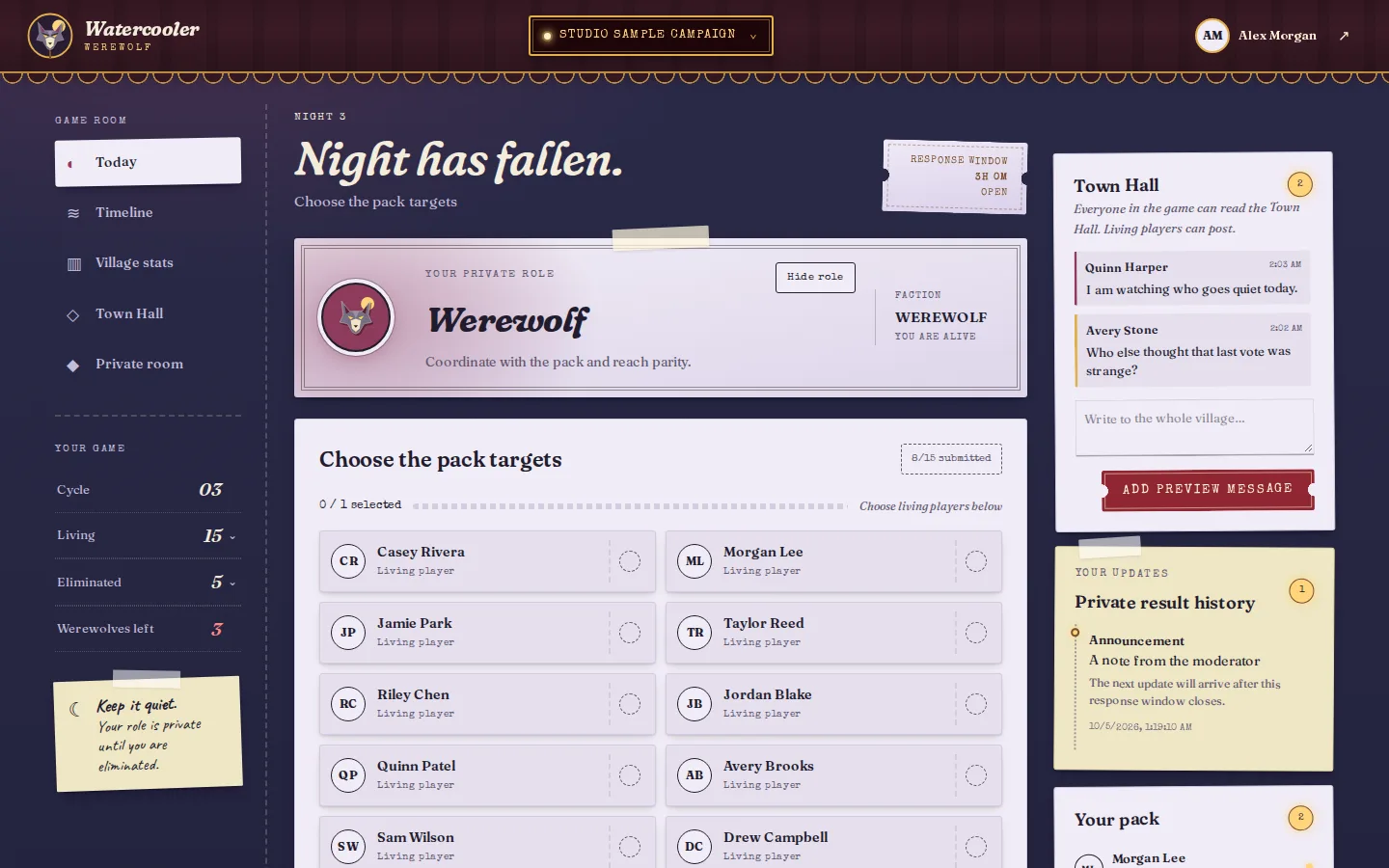
Each Night, vote with your pack on whom to attack. You know your packmates and share a private Pack room. You cannot attack another Werewolf.
Seer
Village
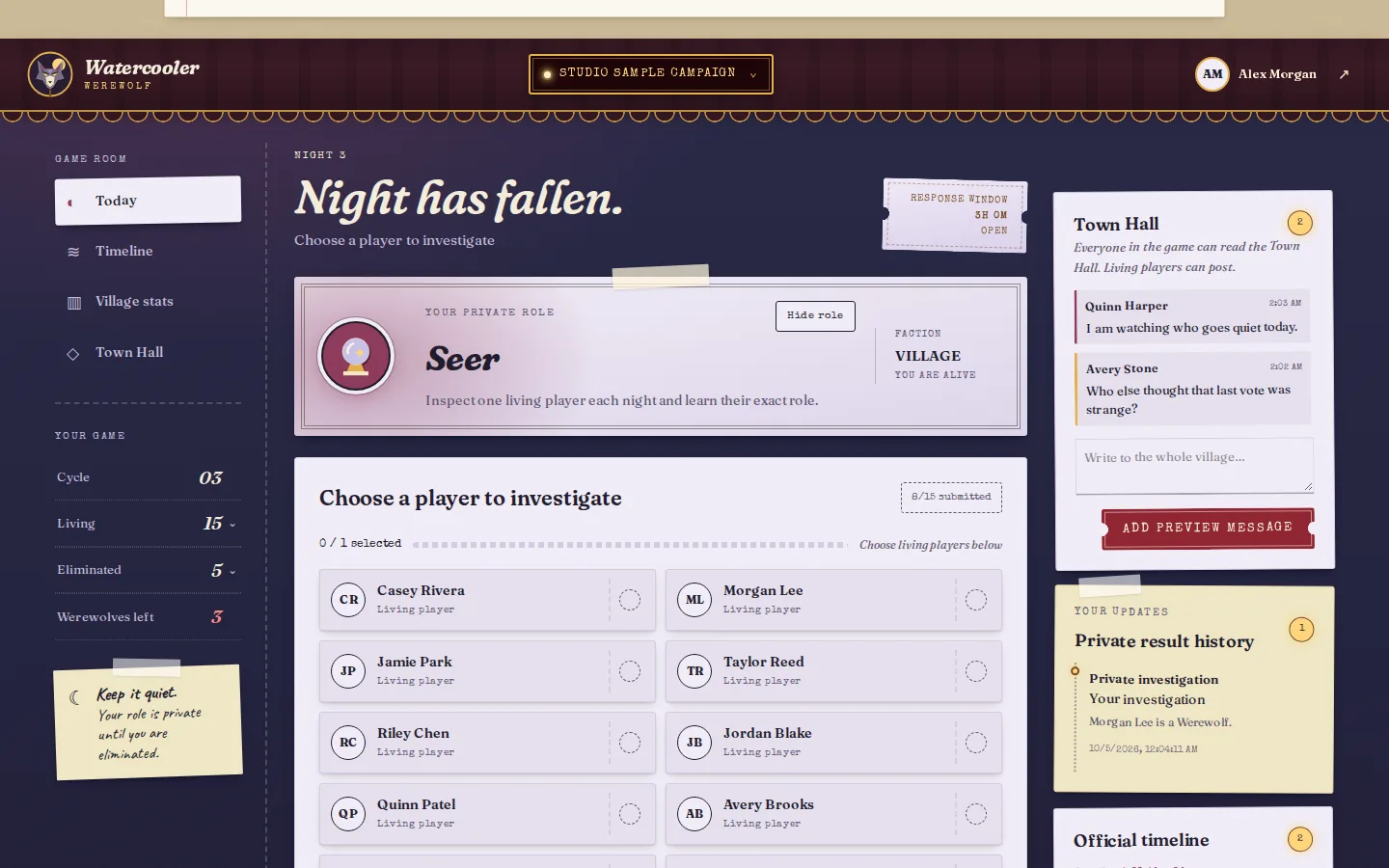
Each Night, investigate one living player. After the result is published, you privately learn their exact role.
Bodyguard
Village
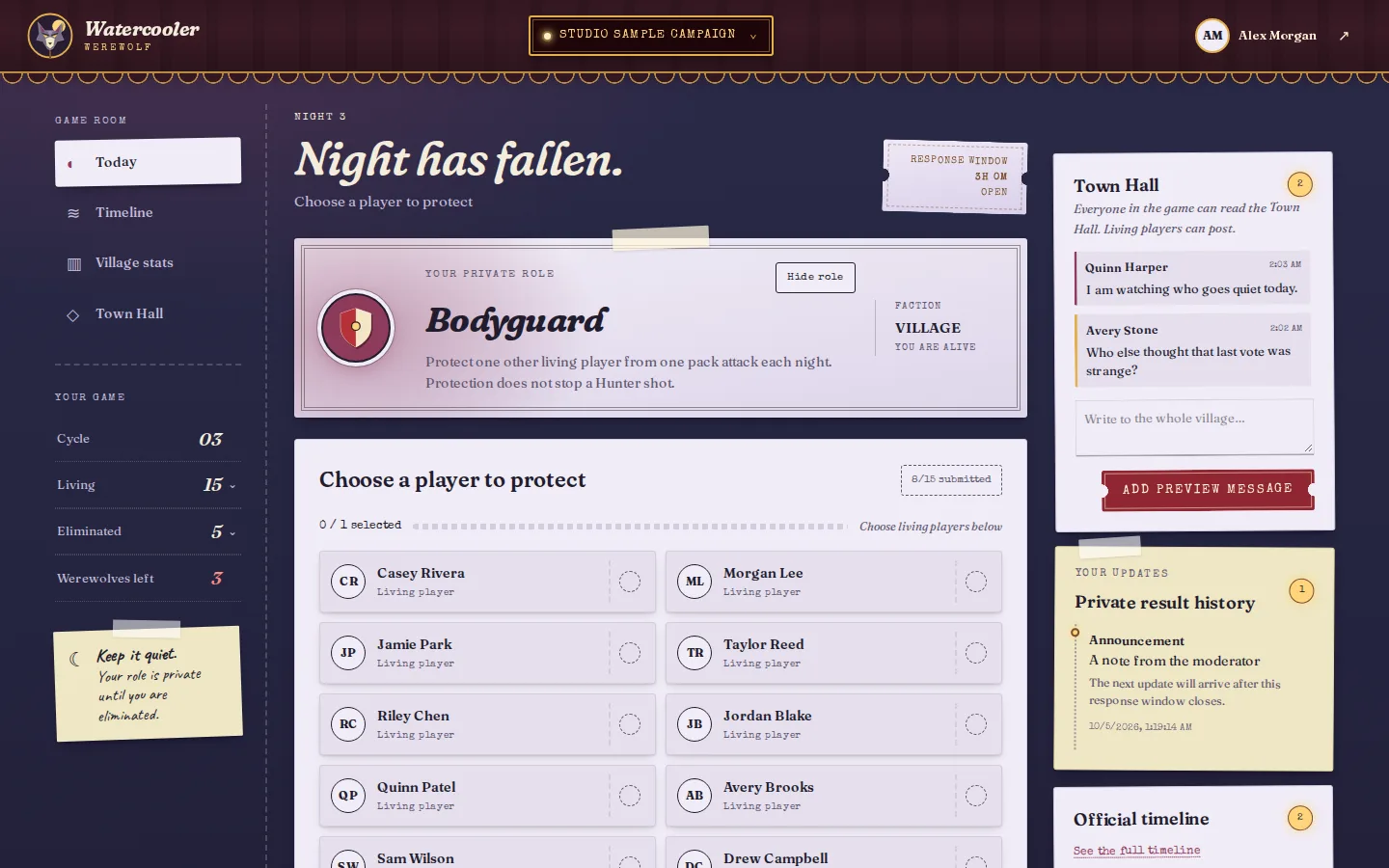
Each Night, protect one other living player from the pack. Protection does not stop a Day vote or a Hunter shot.
Hunter
Village
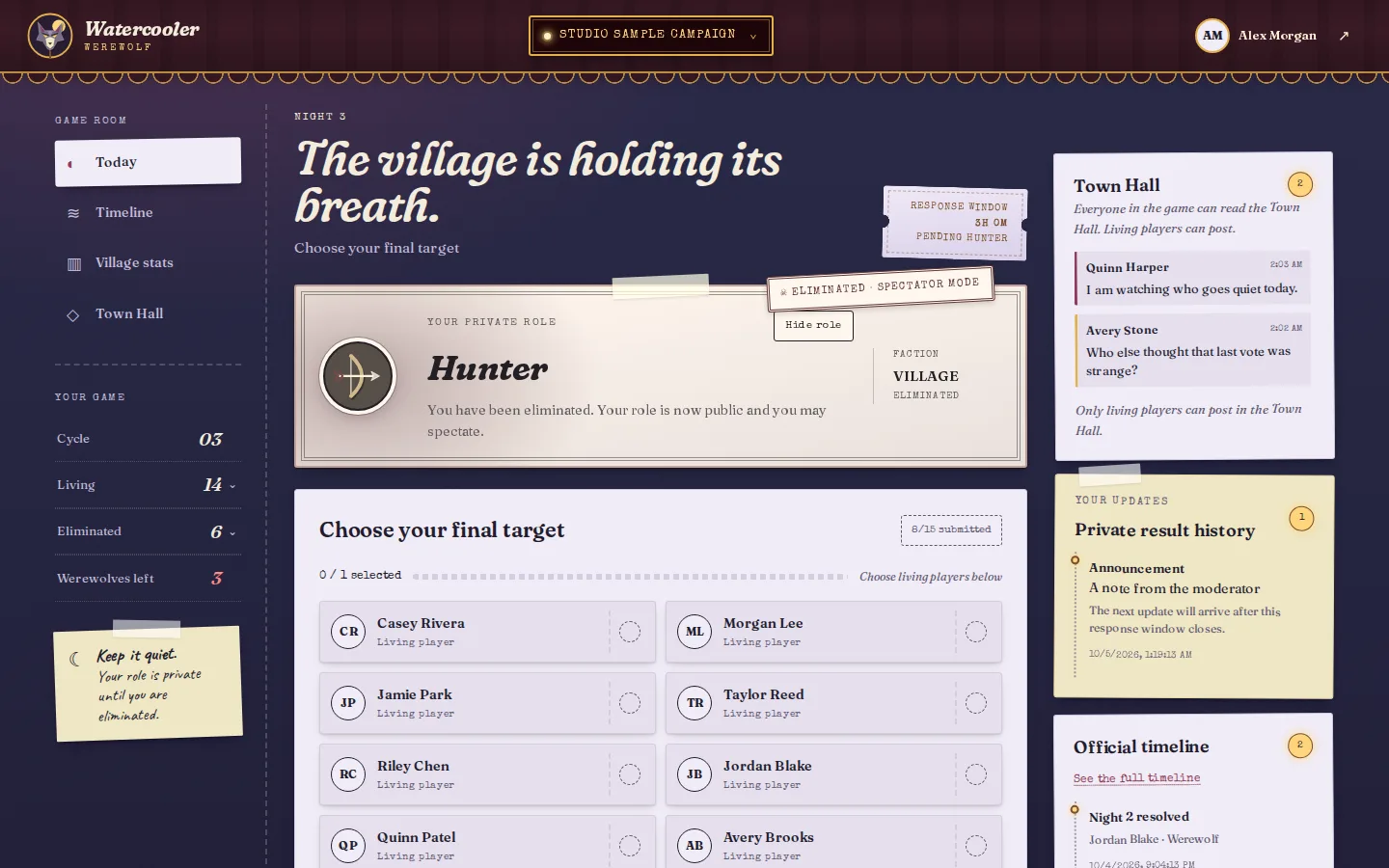
When you are eliminated, you get a short window to take one living player with you.
Mason
Village
You know the other Masons and share a private Mason room. There are always zero or at least two.
Apprentice Seer
Village
Waits while the Seer lives. After the Seer is eliminated, inherit their past results and investigate each Night.
Mayor
Village
Your Day and Final ballot votes count twice. The published ballot lists your vote once, like everyone else’s, and shows no vote totals.
Cupid
Village
Once, on a Night, link two living players as lovers (yourself included). If one is eliminated, so is the other, whatever their team.
A Werewolf choosing the pack’s target.The Seer choosing whom to investigate, with past results on the right.A Hunter’s final shot after being eliminated.The Bodyguard choosing whom to protect tonight.
For players
Sign up first (if you were sent a sign-up link)
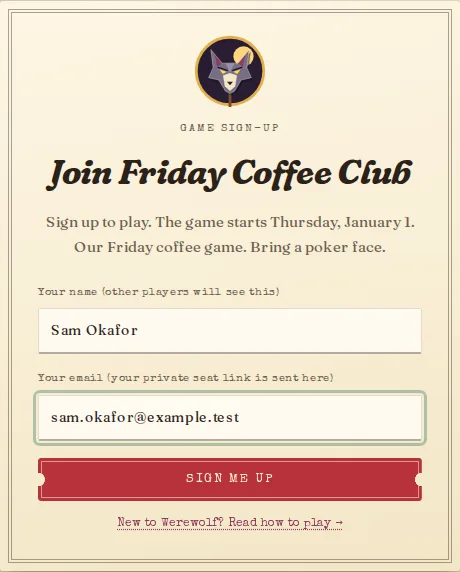
Some moderators share a public sign-up link, instead of or as well as sending private invitations. Open it, enter your name (other players will see it) and your email, and select Sign me up. You are on the list, and the moderator chooses who joins. Nothing is emailed to you at this point. When the moderator confirms the roster, your private seat link arrives by email; check your spam folder. If the page says sign-ups are closed, ask the moderator. Then carry on with step 1.
The sign-up page a moderator shares: a name, an email, and one button. Nothing is emailed to you until the moderator accepts you.
1. Claim your seat
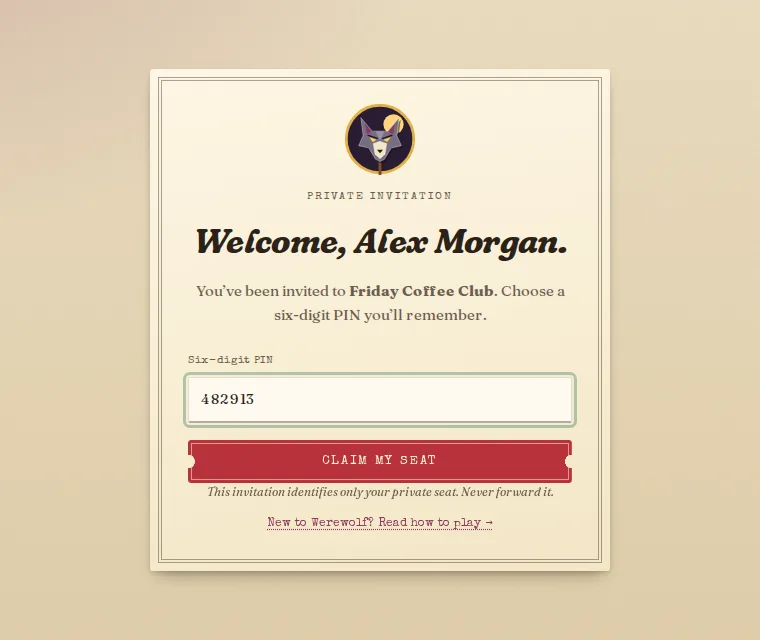
Open the private link your moderator sends you. Check your name, choose a six-digit PIN, and select Claim my seat. The link works once; keep your PIN private.
Claiming a seat from an invitation link.
2. Sign in later
Go to Player sign-in and enter your invitation email and PIN. Your seat code works too.
3. Vote or act
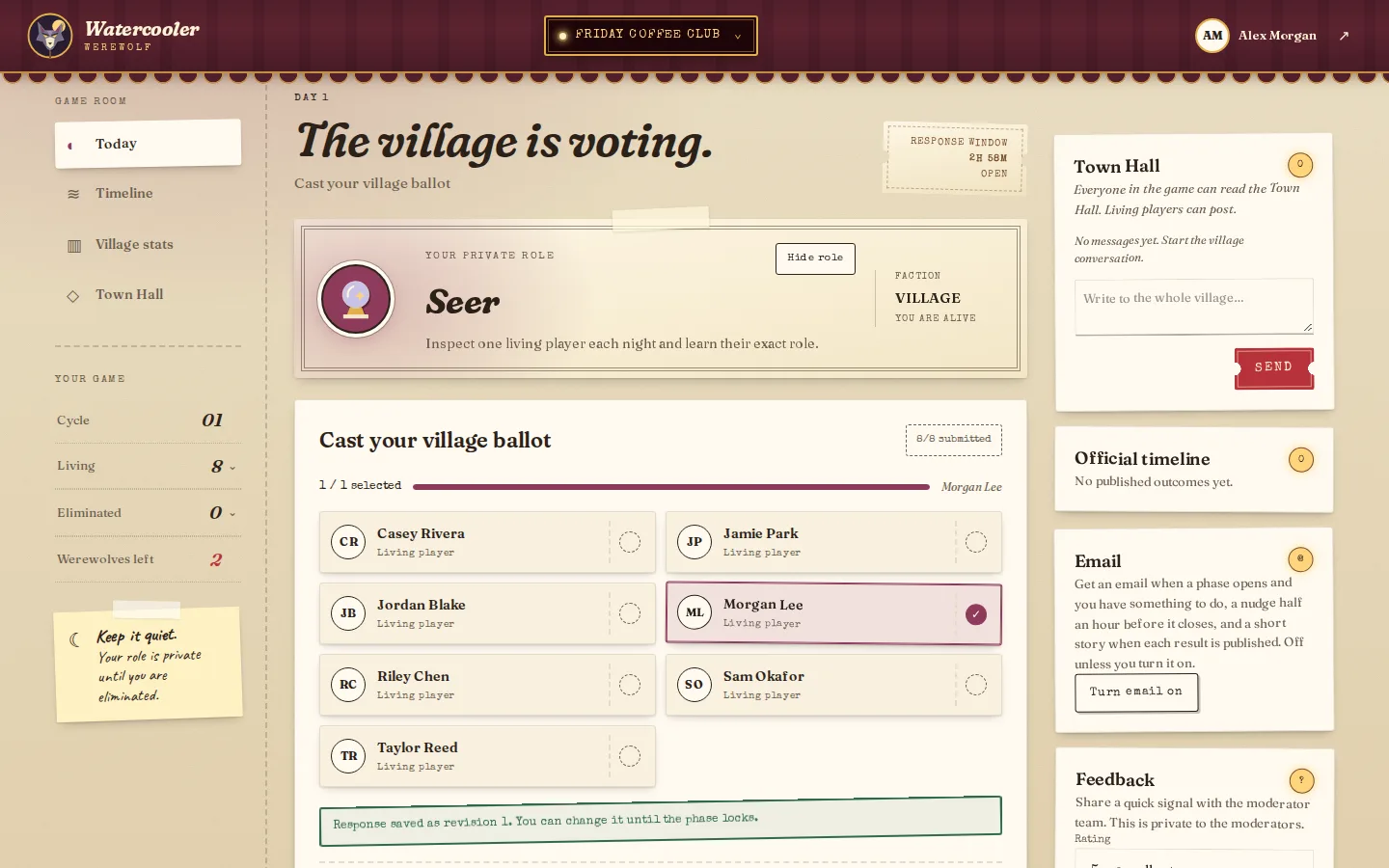
Open Today and read what the current phase asks of you and when it closes. The card beside the heading counts down to the deadline. In a game with automatic results it says when the result will publish, and “The schedule is paused” means the moderator has paused automation for a while.
Select one or more player cards, up to the limit shown.
Select Save response and wait for the confirmation. Selecting cards alone does not count.
You can change your mind and save again until the phase closes. Only your latest saved response counts.
Casting a Day vote. The page refreshes by itself: every 10 seconds in the last 15 minutes before a deadline, otherwise every minute. After five minutes without a tap or key press it pauses and says so; tap anywhere to catch up. Once the game ends it stops refreshing.
4. Follow the story
When a published result eliminates someone, a full-screen notice shows who is out, their role, and how it happened: a vote, a Werewolf attack, the Hunter’s shot, or a lover’s bond. Select I understand to close it; on each device you see it once for each result. If it is you, it says so, and reminds you that you can keep watching as a spectator but should not pass information to living players.
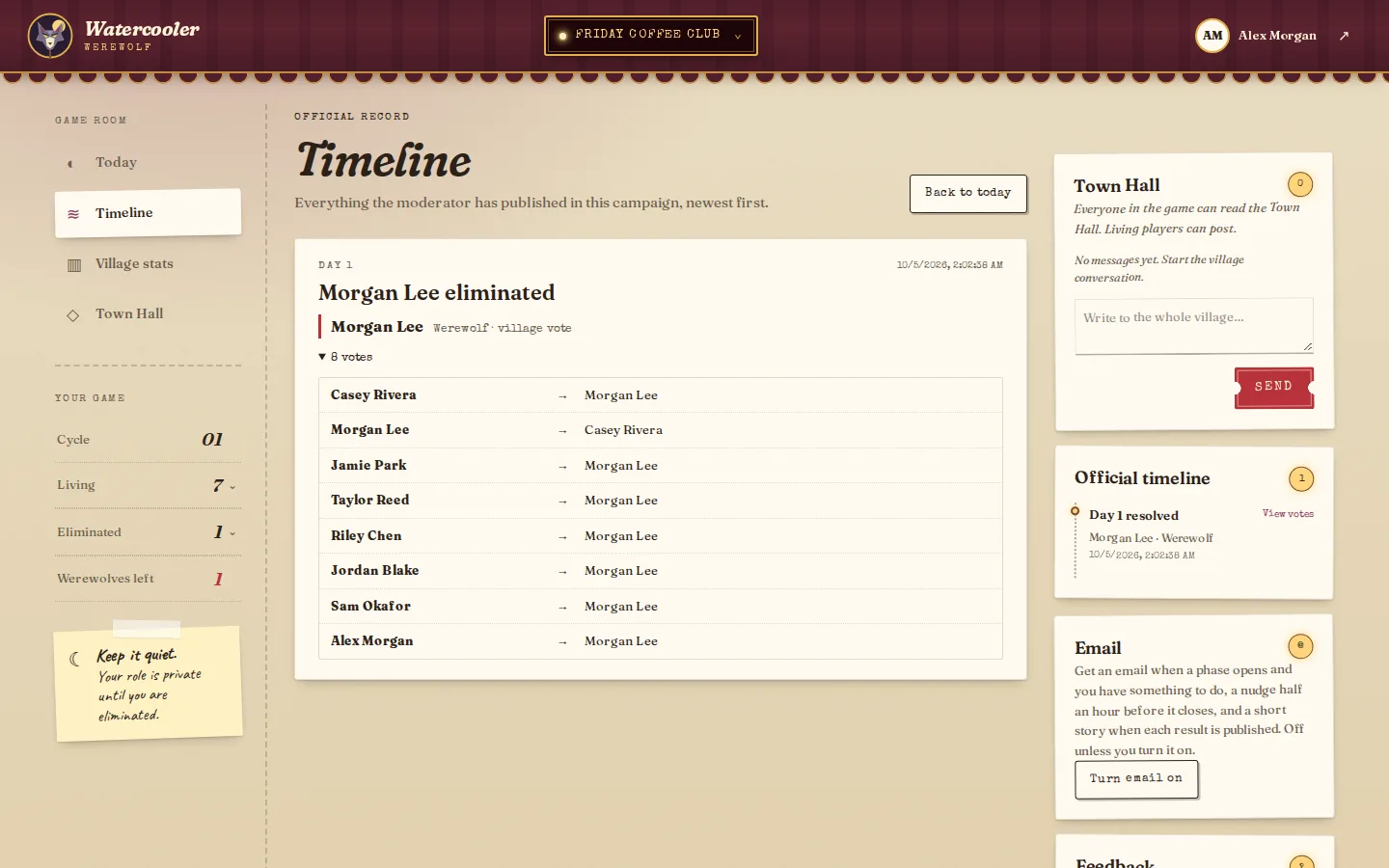
The Official timeline shows each published result, who was eliminated, and their role. Select View votes to see how everyone voted on a Day, or select Timeline in the menu for the whole campaign on one page (the latest 100 updates), with who voted for whom each Day. Private results, such as a Seer’s investigation, appear under Private result history.
The full Timeline: each published result, who was eliminated and their role, and how everyone voted.
For the bigger picture, select Village stats in the menu (Stats on a phone). Pick a day to see how many votes each player received, or choose All days to see who has collected the most. You will also find how many players voted each day and how close the vote was, how many players and werewolves are left after each result, a record of who has left, how busy the Town Hall is by day and hour, and a grid of who voted for whom. It uses only what is already public: published results and message counts, never an open ballot, anyone’s private result, or a living player’s role. The chat total counts every room, including private ones; the chat charts show the Town Hall only. It updates by itself when a result is published, and every chart has a View as table twin.
5. Get email nudges (optional)
If your site operator has turned email on, your dashboard has an Email card. It is off until you select Turn email on. Once it is on you get an email when a phase opens and you have something to do, another half an hour before it closes if you haven’t saved yet, and a short, silly story when each result is published. When the site has an AI key, the story is written by an AI service from the public result (names, revealed roles, how each player left); otherwise from a template. The emails never say what your role is or what your action is. They do go only to players with something to do, so if your screen is visible to others, know that getting a phase email on a Night means you have a Night action. Every email has a link to turn them off again.
6. Send feedback (optional)
The Feedback card sends the moderators a rating from 1 to 5 and, if you like, a comment. It is private to the moderators, but not fully anonymous: they can see whether it came from a player, and the game’s backups record which seat sent it. Spectators don’t have this card.
Good to know
The Town Hall is the whole village’s chat, open day and night. Every player and spectator can read it; only living players can post.
Werewolves and Masons get a private room to chat with their team. Eliminated players can talk in the Afterlife room.
Every chat shows the newest message at the top.
Select Town Hall or Private room in the menu to jump to that chat; it lights up briefly so you can spot it.
The moderator can read every room and may post in them. Their messages are labelled Moderator and highlighted.
Playing where others can see your screen? Use Hide role on your role card. It also hides your private rooms, teammates, private results, and any role-only action, so your page looks like any villager’s. The Day vote and the Town Hall stay. At Night you’ll see “You may have a private action”; show your role to see it.
Once eliminated, you can watch but no longer vote in the village ballot. On each Day you can cast the optional Afterlife tiebreak vote. Please don’t pass information back to living players.
The moderator may add spectators after the game starts. They have no role or vote, see what every player sees publicly, and can chat in the Afterlife, where their name is marked “(spectator)”. They can read the Town Hall but not post there.
For spectators
A spectator watches without playing. Your moderator sends you a private link. Open it, choose a six-digit PIN, and select Start spectating. To come back later, sign in on the home page with your email and PIN, or open the link again.
You have no role and no vote, and you never see anyone’s role until a result reveals it.
You can follow who is alive and read every published result and ballot, just as players do.
You can chat in the Afterlife, where your name is marked “(spectator)”, and read the Town Hall but not post there.
If you forget your PIN, or your seat locks after 10 wrong tries, ask the moderator to reset it.
For moderators
The moderator runs the game but does not play: the console shows every role. You need a moderator account (from the site operator, or from a game owner who approves your application), 6–80 players with unique email addresses, and an agreed place for discussion.
Find your way around
The Moderator console has five tabs under the game bar. Selected game in the game bar switches between your games, and everything on the tabs applies to the one you picked.
Setup: the schedule, Sign-ups, the roster, the roles, and releasing them. It opens first until roles are released.
Run game: the game’s health at a glance (players claimed, players alive, signed-in sessions, whether deadlines are healthy, and the last 24 hours of activity, with Check deadlines), then Run the live game for each phase, plus Player choices and Village stats. It opens first once roles are released.
People: Player access recovery for a forgotten PIN, Spectators, Co-moderator access, and Moderator applications.
Messages: Official announcement, Chat rooms, and Feedback.
Safety & records: the Event log, backups, and under Danger zone, Stop game and Reset to setup.
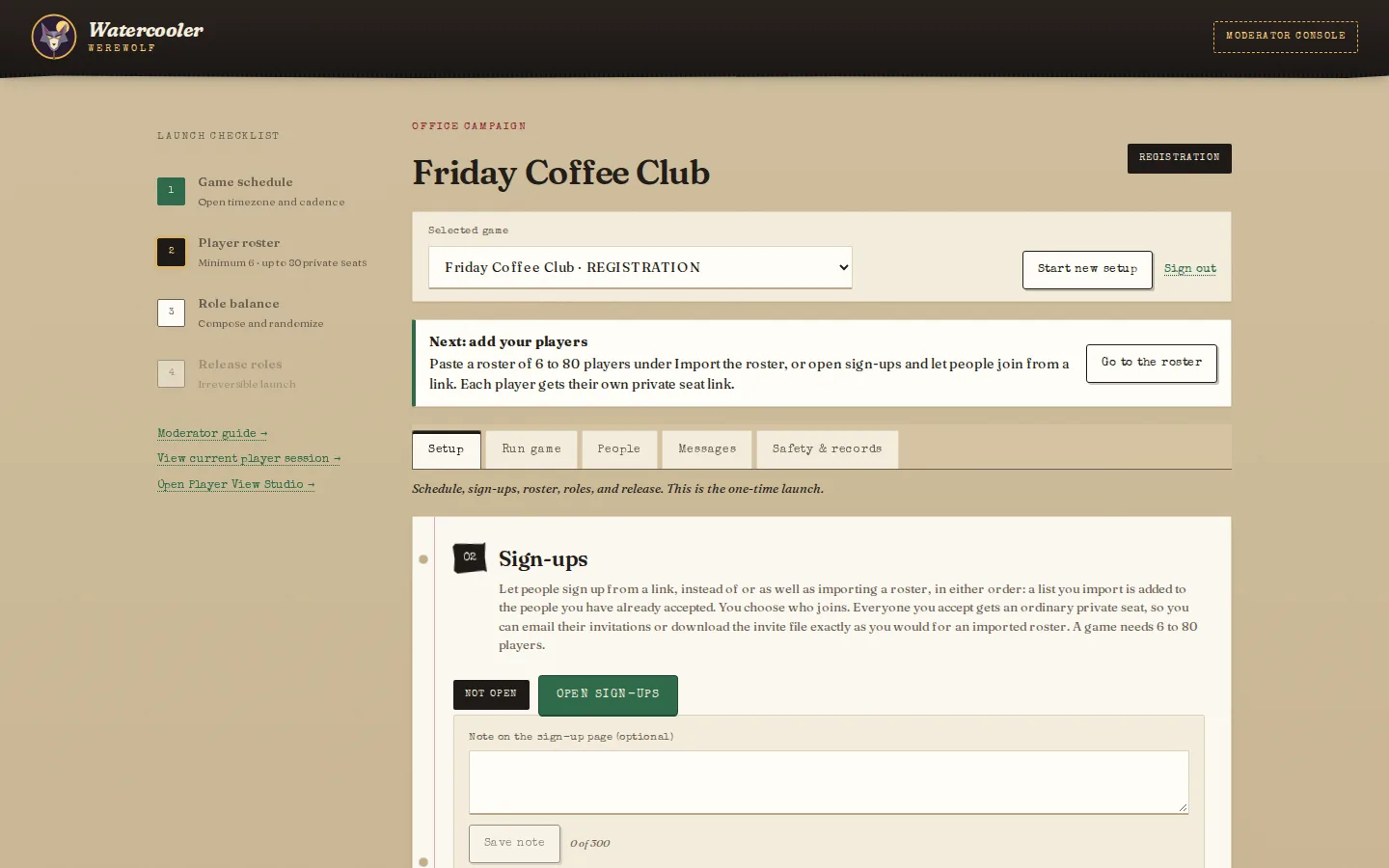
The Launch checklist beside the page shows the four launch steps and jumps to each one. A Next step note under the game bar says what to do now, and the top of Run the live game says what to do for the current phase. A dot on Run game means a result, a Hunter follow-up, or a locked phase is waiting for you. A number on Safety & records means the event log has a new problem, such as an email batch that failed or an automatic step that could not run; opening the tab clears it. A number on Setup means people have signed up and are waiting for you to accept them; a number on People means a moderator application is waiting for the owner. They stay until each is dealt with. On a phone, the checklist becomes a row of steps above the page and the tabs scroll sideways. Moderator guide, Open Player View Studio, and View current player session are links beside the checklist.
The console during setup: the Launch checklist on the left, the game bar, a note saying what to do next, and the five tabs.
Set up a game
Create the game. In the Moderator console, enter a name, timezone, dates, a final cutoff, and the Hunter window (how long an eliminated Hunter has to shoot, 8 hours by default), then select Create game. Advanced: eliminations per phase sets how many living players each elimination slot covers, with a preview of the slots; most games keep the default of 30. Below it, Use a fixed elimination schedule sets exact numbers instead, in stages, such as 2 Day eliminations and 2 Night kills for game days 1–5, then 1 and 1 until the end; a game day is one Day and the Night after it, and skipped calendar days don’t count. The preview lists each stage, and final ballots still use players per Day elimination. Under Results, keep I review and publish each result or choose Publish automatically after a review window (60 minutes by default). You can change all of these under Game schedule until roles are released; the Results choice and the elimination schedule can also change at any time in Run the live game.
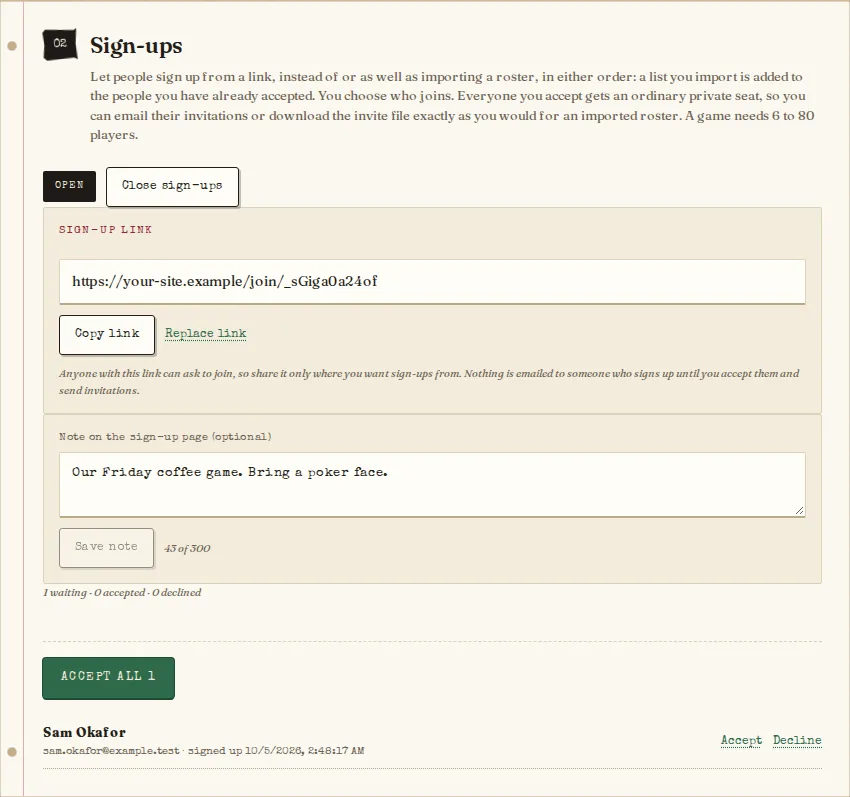
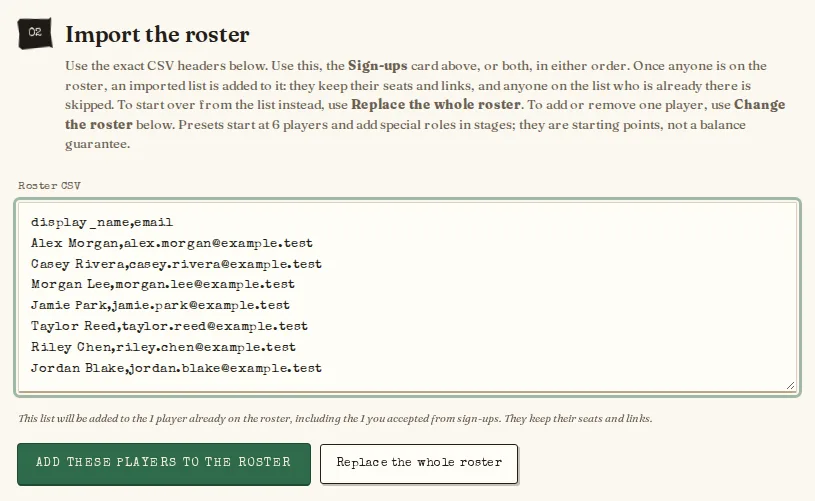
Add players. There are two ways, and you can use both. To let people sign themselves up, select Open sign-ups in the Sign-ups card, copy the link, and share it where you want sign-ups from. Visitors enter a name and an email; nothing is emailed to them yet. Each appears under Waiting sign-ups: select Accept or Decline beside a name, or Accept all. Accepting adds the person to the roster as an ordinary unclaimed seat, so the invitations below work for them exactly as for anyone else. A roster built this way can hold fewer than 6 players while you collect them, but you can’t randomize roles until it has 6. Select Close sign-ups when you have your players: the link then says sign-ups are closed, and you can still accept the people already waiting. Sign-ups also pause while roles are randomized. An optional note on the sign-up page can say what the game is, and Replace link ends the old link if it spread further than you wanted. Or paste a roster with the header display_name,email, one email address per player, and select Create private seats; once anyone is on the roster, that button reads Add these players to the roster. Then select Email invites to send each player their own private link (if the site operator has turned email on), or Download invite CSV and send each person only their own message. Waiting on lists who hasn’t claimed yet, with Resend for a lost email. A resent link replaces the old one. Before you randomize roles, use Change the roster to add a late joiner, or Remove beside someone who hasn’t claimed; everyone else keeps their seat, and each change adds or removes one Villager. You can use both, in either order. Open sign-ups first and import your list when you are ready: the list is added to the people you have already accepted, who keep their seats and links, and anyone on the list who is already on the roster is skipped. Or import first and accept sign-ups on top. To start over from a list instead, select Replace the whole roster: it asks you to confirm, removes every seat (including people you accepted from sign-ups, who go back to waiting and can be accepted again), and everyone must claim again. After roles are released, someone who missed the start can still join during the first Day or Night: in Run the live game, use Add a late Villager and send them the private link it shows. They always join as a Villager, and nothing is announced to other players.
Balance the roles. Accept the suggested counts or edit them and select Save composition. A 20-player game defaults to 12 Villagers, 3 Werewolves, a Seer, a Bodyguard, a Hunter, and 2 Masons.
Release roles. When every seat is claimed, select Randomize roles, review the result privately, then Release roles to players. Setup is locked after release.
The Sign-ups card on Setup: the public link, the note players see, and the people waiting, with Accept and Decline beside each name.With people already on the roster, a pasted list is added to them. Replace the whole roster is a separate button that asks you to confirm.
Want to see what a role looks like to players? Open Player View Studio, beside the Launch checklist, shows the player screens with sample data. Pick a role and a game moment, or select Play elimination scene to replay the notice players see when someone is eliminated. Back to moderator console returns you.
To begin another game, select Start new setup in the game bar. It leaves your current game alone, and Selected game switches between them. To throw away an unfinished setup, the owner can use Start over → Cancel setup and start new game at the bottom of the Setup tab. It permanently cancels that game and its invite links and player sessions, and keeps its audit history.
Run each phase
Repeat this loop, starting with a Day and then alternating Night and Day:
Open. Choose the phase and a deadline, then select Open phase. The deadline starts at the next Day or Night close time from your game settings (for example 4:00 pm for a Day ballot); check it before you open. Phases open on their own only if you tick Open the next Day or Night automatically after each result publishes under Change how results publish (it needs automatic results, and a reset or restore turns it off again); otherwise opening is the one step you always do. Either way, you open the first Day and start final showdown yourself. To give players more time once a phase is open, enter a later time beside Change deadline. A deadline can be moved later but not earlier, and only before voting closes. A phase’s slots are fixed when it opens. To change future slots, use Elimination schedule → Change the elimination schedule: it marks game days already played and the current one, and a saved change applies from the next phase to open.
Collect.Still to respond lists, for your eyes only, the living players who haven’t saved a response. Select Copy nudge message and paste it into your group chat. On a Day it names who hasn’t voted. At Night it names nobody, because the list would reveal who has a Night role.
Lock and calculate. Voting always closes at the deadline, and the console then shows the phase as Locked. With automatic results, the result is also calculated by itself. In review mode or while paused, or to close early, select Lock responses & calculate.
Hunter. If a Hunter is eliminated, they get the game’s Hunter window (8 hours by default) to shoot. With automatic results the game finishes this as soon as the Hunter shoots, or when the window closes. In review mode, select Finalize Hunter.
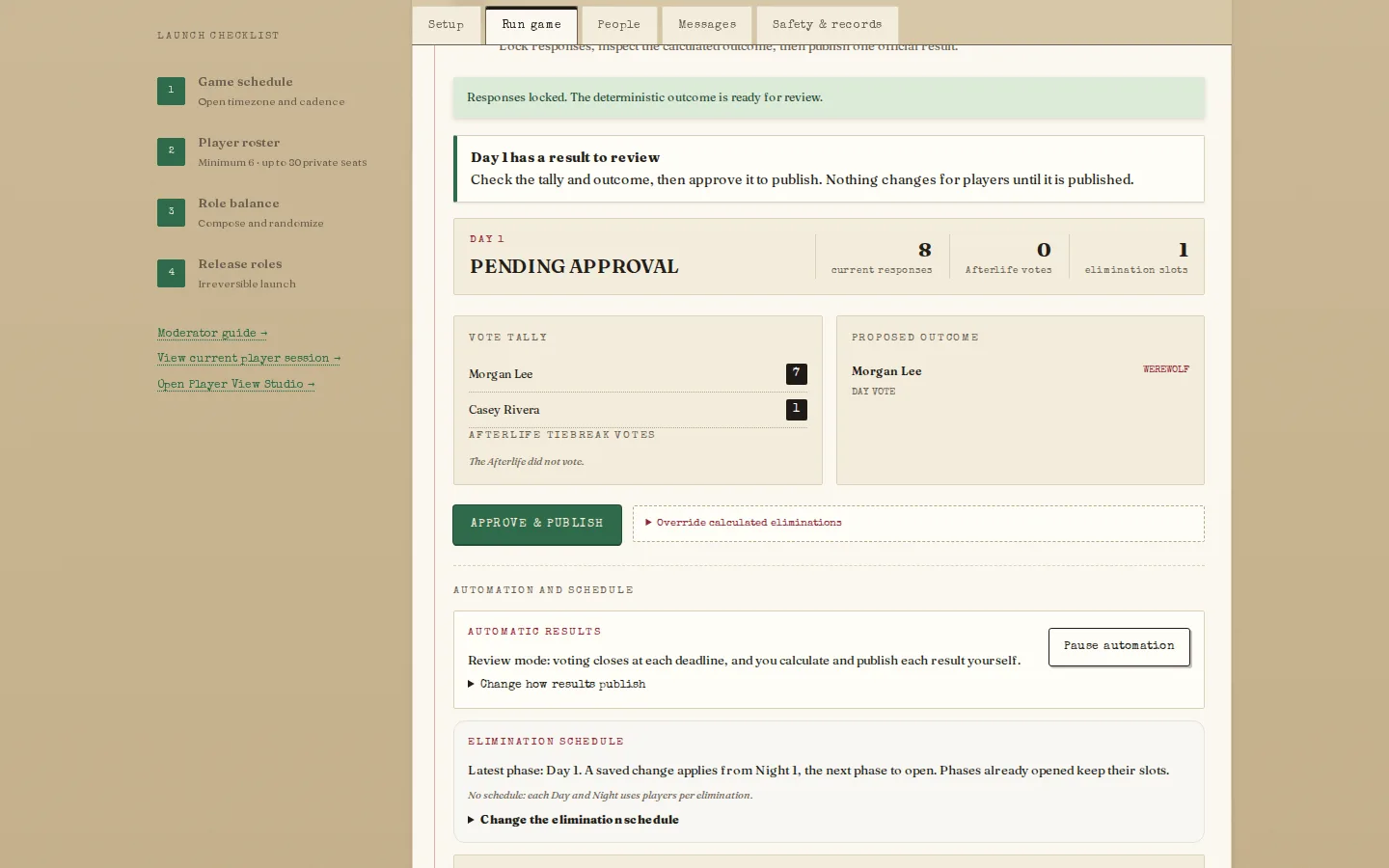
Review and publish. Check the tally and proposed outcome. On a Day, the console also lists the Afterlife’s tiebreak votes and says when they broke a tie. With automatic results, the console says when it will publish; do nothing and it publishes then, marked “Published automatically after the review window”. Select Approve & publish to publish sooner, Override calculated eliminations to correct it, or Pause automation to hold it. In review mode, nothing publishes until you select Approve & publish. Only publishing eliminates players, reveals roles, and checks for a winner.
Reviewing a calculated Day result before publishing it.
If a result must be corrected, Override calculated eliminations lets you publish a different list with a written reason. The original calculation stays on record. If the corrected list eliminates the Hunter, the Hunter gets a fresh window and chooses their shot again.
Finish
The game completes as soon as a published result produces a winner. After the final cutoff, you can instead Enter final showdown and run Final ballots until someone wins. Afterwards, select Download JSON backup to keep a private record.
Moderator tools
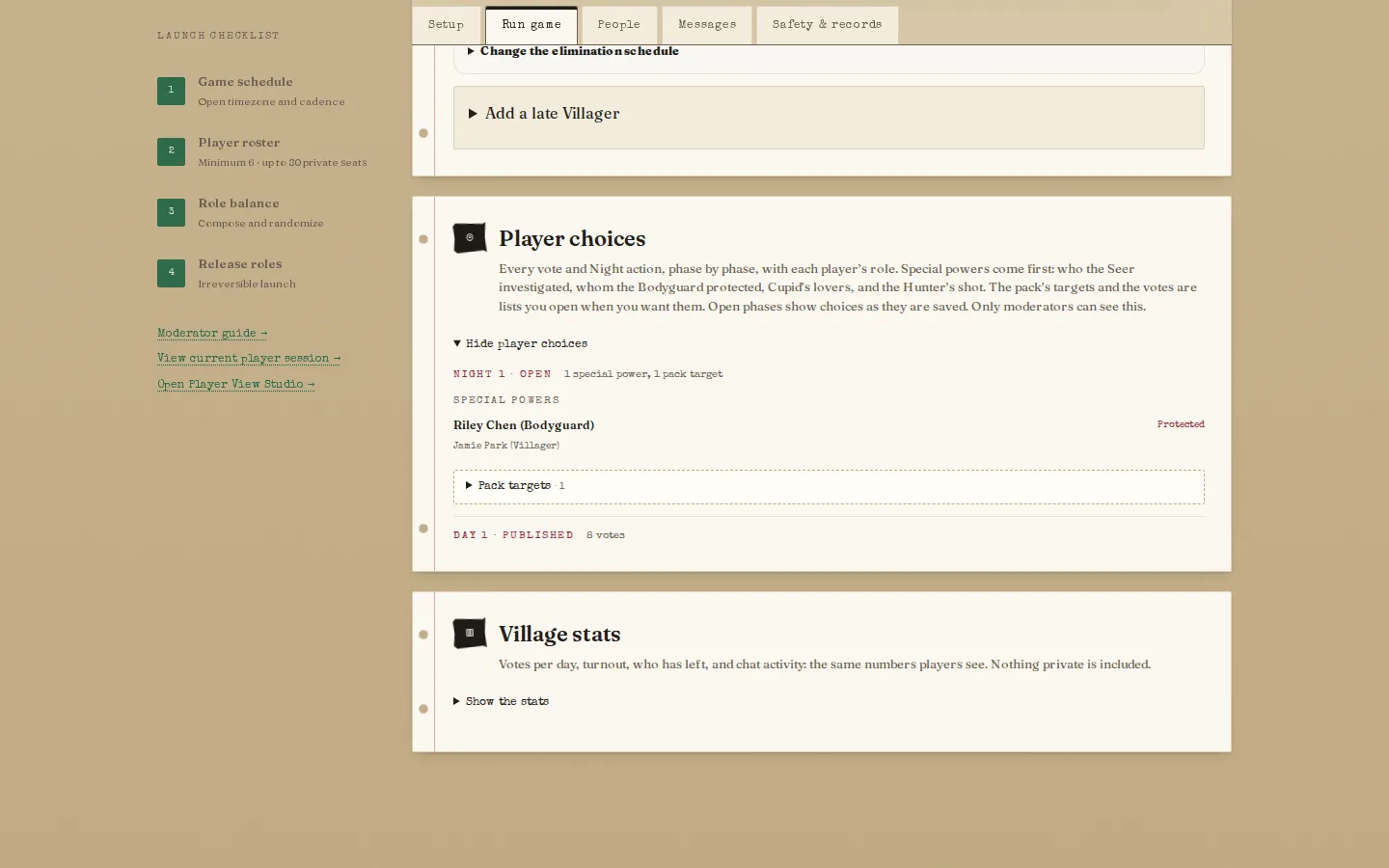
Player choices: the special powers come first, and the pack’s targets and the votes are lists you open when you want them.
Player choices, on the Run game tab below Run the live game, is for checking that special powers worked. Select Show player choices and each phase lists its Special powers first, with each player’s role: whom the Seer investigated, whom the Bodyguard protected, Cupid’s lovers, and the Hunter’s shot. The pack’s targets, the Day votes, and the Afterlife’s tiebreak votes are separate lists that stay closed until you open them; the line beside each phase says how many of each it holds. The newest phase starts open and older ones closed. Open phases show choices as they are saved, and a changed choice replaces the earlier one. Only moderators can see it, so it suits a moderator who isn’t playing.
Village stats, below Player choices, shows you the same numbers players see: votes per player each day, turnout, who has left, chat activity, and who voted for whom. Select Show the stats to open it. It shows no living player’s role and no private result; the chat total counts private rooms too, but only as one number.
Check deadlines, at the top of the Run game tab, locks any phase that is past its deadline right away. The console also does this by itself about once a minute while you use it, so the button is for when you don’t want to wait. Deadlines reads Overdue until it has.
Player email is each player’s choice. When the site operator has turned email on, players can switch on emails for a phase opening, a half-hour warning, and a themed recap of each result, written by an AI service when the site has an AI key, otherwise from a template. Phase and warning emails go only to players who have something to do; the recap goes to everyone who turned email on. Your Event log (Safety & records tab) shows how many players each batch reached, and flags any that failed. Nothing is required from you.
Announcements (Messages tab) appear in every player’s updates. Announcement copy then shows each one ready to paste into an email or a group chat, with Copy email and Copy for chat.
Feedback (Messages tab) lists the ratings and comments players and moderators send from the feedback card, with the average. It shows whether each came from a player or a moderator. The list doesn’t name the sender, but backups record which seat sent each one. Send your own feedback under it adds your own rating.
Player access recovery (People tab) sets a new PIN for a player who forgot theirs, and unlocks a seat locked after 10 wrong PINs (marked “locked” in the list).
Chat rooms (Messages tab; the Town Hall and the private rooms) can be made read-only, and individual messages removed with a reason. Select Open room to read a room’s whole history, newest first (Load earlier messages at the end goes further back), and to post there. Your messages show to the room as Moderator, never your name or email. You can post only while the room is open and the game is running; reopen a read-only room first. Messages are kept until a moderator selects Purge expired; that removes everything older than the retention setting (7 days by default).
Spectators (People tab) can be added once roles are released and while the game runs. Enter a name and email, select Add spectator, and send them the private link shown once. They choose a PIN when they first open it. To come back later they sign in on the home page with their email and PIN, or open the link again. They have no role or vote, see the public game (who is alive, published results and ballots), and can read and post in the Afterlife. A player in the game can’t be a spectator. Remove ends their access; if a spectator loses their link before opening it, remove them and add them again. If one who has chosen a PIN forgets it, or is locked out after 10 wrong tries (the list says “locked”), select Reset PIN beside their name, choose a new six-digit PIN and a reason, and tell them the PIN privately. Resetting the game removes its spectators.
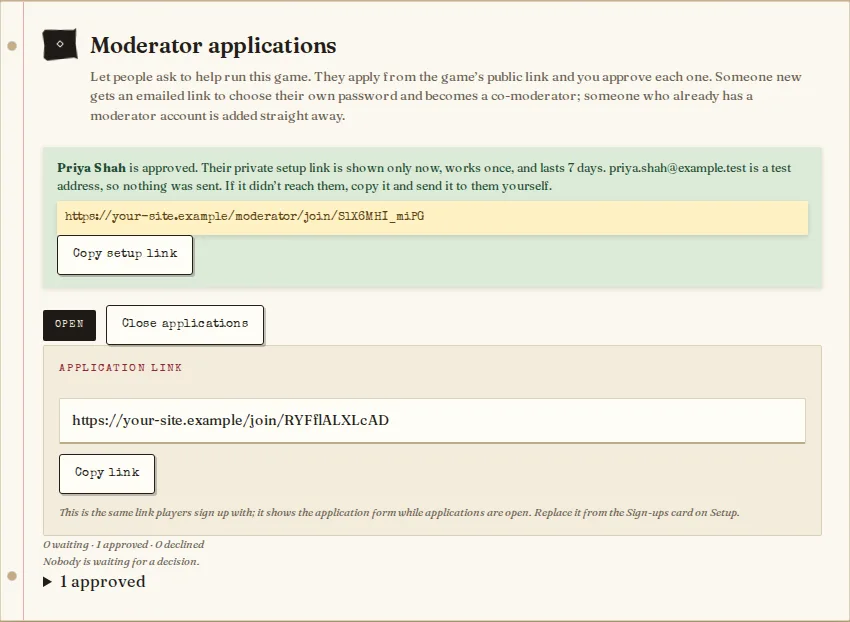
Moderator applications (People tab) let the game owner take on help without typing a password for anyone. Select Open applications and share the link; it is the same link players sign up with, and the page shows an application form (name, email, and an optional note) while applications are open. Replace link beside it ends the old link at any stage of the game (it replaces the sign-up link too). Under Waiting applications, select Approve or Decline. Someone with no moderator account gets an emailed link to choose their own password; it works once and lasts 7 days, and if the site can’t send email you are shown the link once to send yourself. Someone who already has an account is added straight away. Either way they become a co-moderator of this game. Send a new link under approved replaces a lost one, and Withdraw cancels it. Co-moderators can’t see or decide applications, and nothing is emailed to an applicant until you approve them.
Co-moderators (People tab) can be added by the game owner with an email and a password of 12 or more characters, or by approving an application. A new account shows one-time recovery codes; pass them on privately. Any co-moderator can run phases, publish, post announcements, moderate chat, and reset PINs. Only the owner can add or Remove co-moderators, Make owner to hand the game over and stay on as a co-moderator, reset or restore the game, or cancel a setup.
Backups (Safety & records tab): Download JSON backup saves a private file with the game’s roles, results, and room messages, but never PINs, passwords, or invite codes. Keep it private. A backup is also taken automatically before every reset and restore. The owner can use Recovery restore to rebuild a game’s setup from a stored snapshot; it makes fresh invite links, so select Download fresh invites straight away.
Pause automation in Run the live game stops automatic calculation, publication, and opening the next phase (for an offsite or a long weekend) until you select Resume automation. Deadlines still close voting. Players see “The schedule is paused”.
Stop game (Safety & records tab) ends play permanently. Reset to setup (owner only) clears the game back to setup after taking a backup.
Moderator applications on the People tab: approving someone new shows their one-time setup link once, and emails it when the site can send email.
Help
Problem
What to do
I lost my invitation link
Sign in at Player sign-in with your invitation email and PIN. If that fails, ask the moderator for your seat code.
“Which game do you want to open?”
Your email and PIN fit a seat in more than one game that is still going. Choose the one you want. Finished games no longer count, so you are only asked while two or more games are in progress.
I forgot my PIN
Ask the moderator. They can set a new PIN, which signs out your old sessions.
“This seat is locked”
After 10 wrong PINs in a row your seat stops accepting sign-in. Ask the moderator for a new PIN; that unlocks it.
My role says “Not released”
The moderator has not released roles yet. Every seat must be claimed first.
Save response is unavailable
Select a legal player first. The phase may also be closed, your role may have no action this phase, or you may be eliminated.
“Too many attempts”
Stop retrying and wait as long as the message says (usually up to 15 minutes for sign-in).
I signed up but never got my seat link
The moderator chooses who joins, then sends the invitations; nothing is emailed when you sign up. Check your spam folder, and ask the moderator if it has been a while.
The sign-up link says sign-ups are closed
The moderator has closed sign-ups, or paused them while roles are randomized. Ask them if you would still like to play.
Moderator: Randomize is disabled
The roster needs at least 6 players, every seat must be claimed, and any edited role counts must be saved. Remove anyone who has decided not to play.
Moderator: an applicant’s setup link doesn’t work
The link works once and lasts 7 days. On the People tab under Moderator applications, open approved and select Send a new link beside their name.
Moderator: I can’t add or remove a player
The roster locks once roles are randomized. Select Save composition to discard the preview and unlock it. After release the roster is final, except in an emergency: during the first Day or Night, use Add a late Villager in Run the live game. You can also add someone as a spectator.
Moderator: Hunter cannot be finalized
Wait for the Hunter to submit or for their window to expire, then try again.
Moderator: an action shows an error
Refresh first. Another moderator may have completed it already.
Moderator: I forgot my password
On the moderator sign-in page select “Forgot password? Use a recovery code”, then enter your email, one unused recovery code, and a new password of 12 or more characters. The code is used up and your other moderator sessions are signed out. There is no email reset: without a recovery code, ask the site operator.
Moderator: I started a game by mistake
Before roles are released, the owner can open the Setup tab, find Start over, and select Cancel setup and start new game. After release, Stop game ends play for good, and Reset to setup (owner only) takes a backup and returns the game to setup. Both ask you to confirm first.
Moderator: a phase says Locked or Deadlines says Overdue
Voting always closes at the deadline by itself. Select Check deadlines on the Run game tab to lock anything past its deadline now, then select Calculate locked responses to see the result.
Moderator: did the emails go out?
Check the Event log on the Safety & records tab. Each email batch, failed emails, and automatic steps that could not run are listed there, newest first.